
Instagram to MP4: How to Download Instagram Videos as MP4 Files
Download Videos Free, No Watermark
LikeWave Team
Published
Need to save an Instagram Reel or video as an MP4 file? The fastest method is to copy the public Instagram post URL, paste it into the LikeWave Instagram Video Downloader, click Download video. The tool prepares the video as an MP4 file that you can save on your phone, tablet, or computer. It is free, works without an account, and does not add a watermark.
What Does “Instagram to MP4” Mean?
“Instagram to MP4” simply means saving a video published on Instagram in the widely supported MP4 file format. Instagram normally lets you watch videos inside its app or website, but a direct MP4 file is easier to keep for offline viewing, editing, presentation planning, content research, or archiving your own posts.
MP4 works on almost every modern device and media player, including Windows, macOS, Android, and iPhone. It can also be imported into common editing tools without another conversion.
LikeWave simplifies the process: paste the URL of a public Instagram video and let the downloader prepare the file.
How to Convert Instagram to MP4 with LikeWave
The complete process takes only a few steps. You do not need to log in to Instagram through LikeWave, create a LikeWave account, or install software.
Step 1: Find the Instagram video
Open Instagram in a browser such as Google Chrome and go to the account that published the video. Find the Reel, feed video, or other public video post you want to save. Open the individual post rather than leaving it inside a scrolling profile grid.
For example, an Instagram Reel URL may look like this:
https://www.instagram.com/reel/SXy3PJ3Ivj-/
The letters and numbers after /reel/ identify the specific Instagram post. Your link will normally have a similar structure, although regular video posts may use /p/ instead.
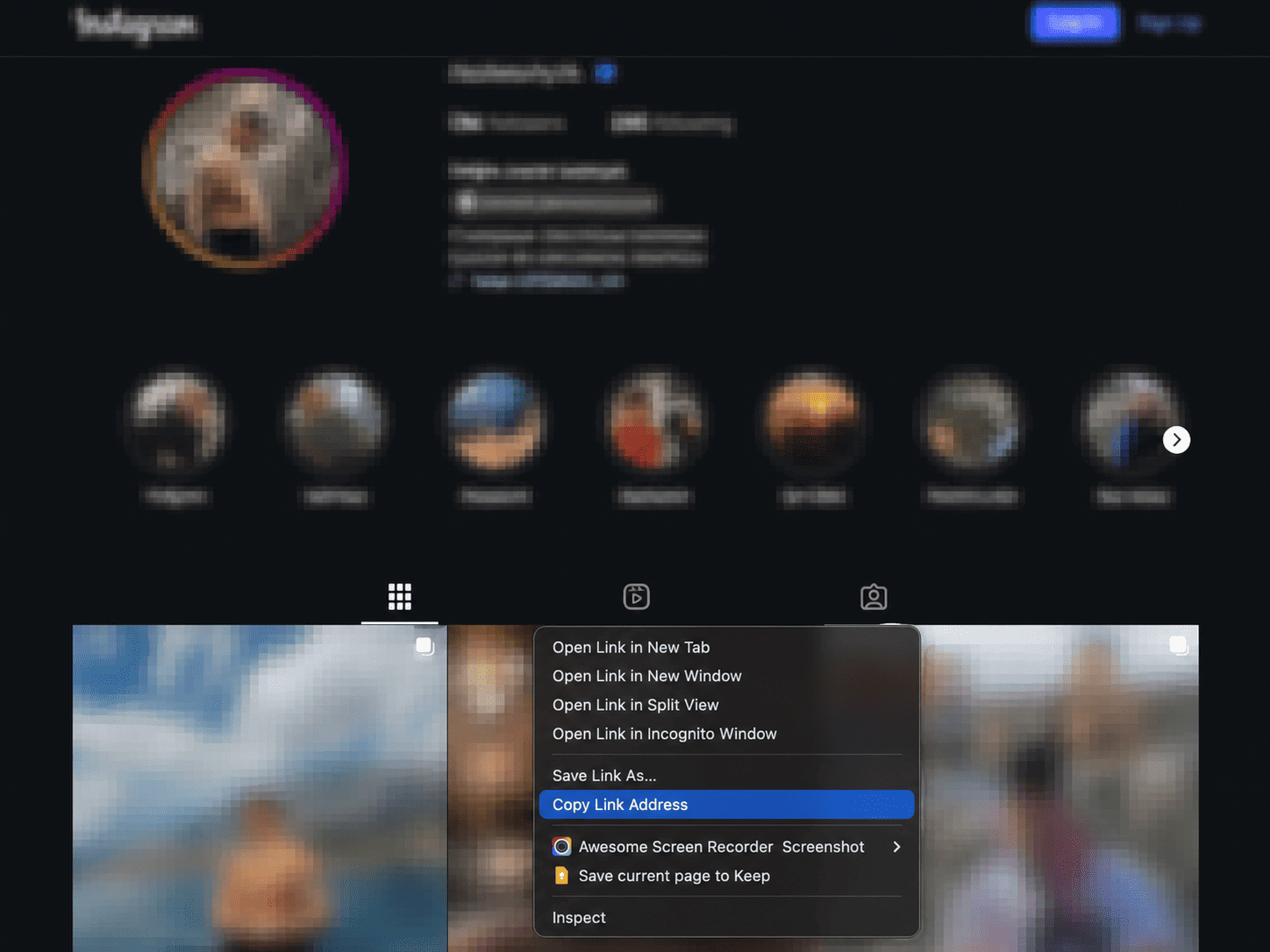
Step 2: Copy the Instagram video URL
When the video is open in Chrome, click the browser address bar, select the full URL, and copy it. On Windows, you can use Ctrl + C. On a Mac, use Command + C.
In the Instagram app, open the post, tap the share icon or three-dot menu, and choose Copy link.
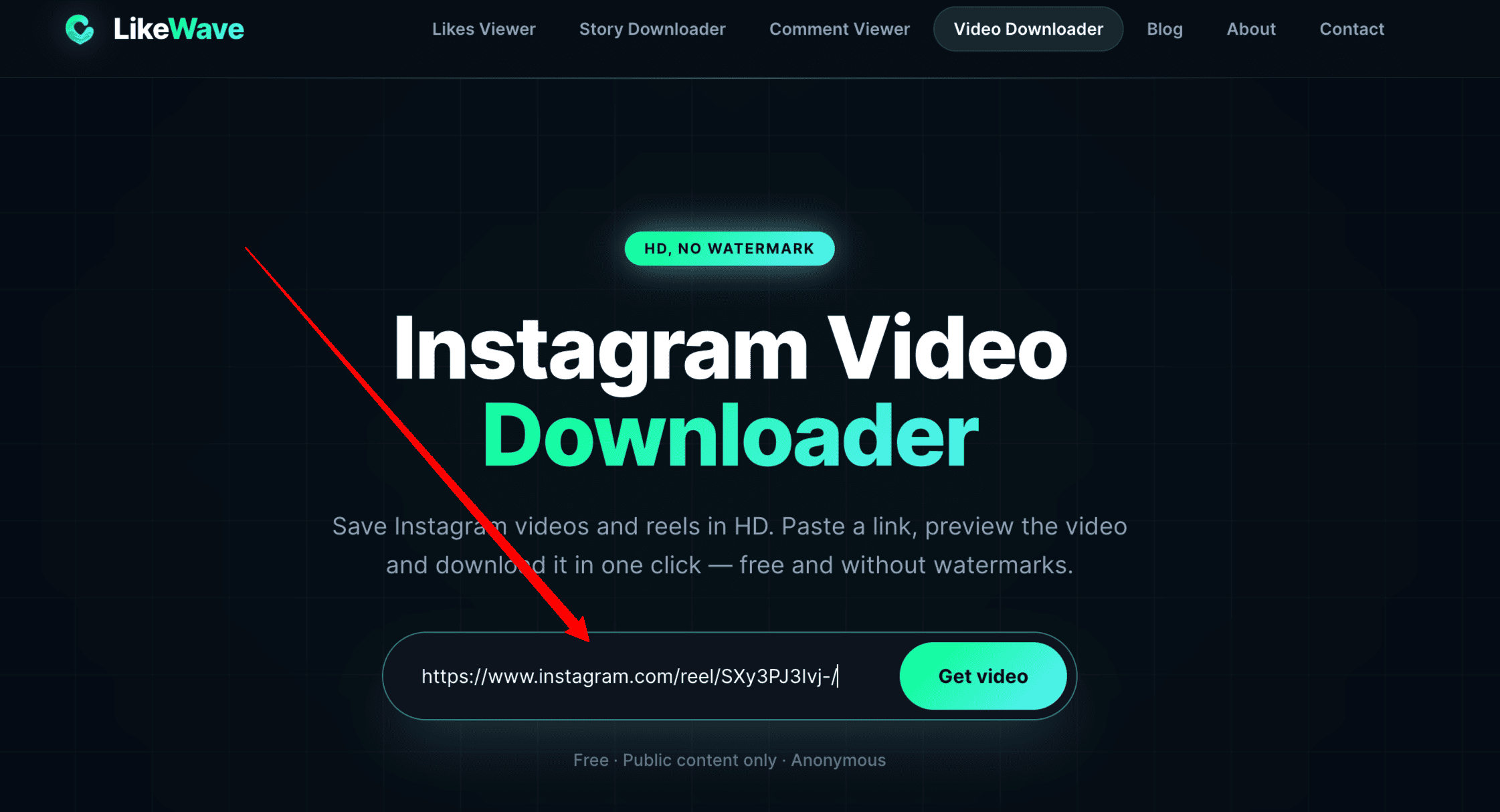
Step 3: Open the LikeWave Instagram Video Downloader
Go to the LikeWave Video Downloader page. You will see a field designed for an Instagram URL and a button labeled Get video. Paste the link into the field. Use Ctrl + V on Windows or Command + V on Mac. On a phone, press and hold inside the field and select Paste.
Check that the address includes instagram.com and points to the actual post. A profile, search, or Explore URL will not identify the video.
Step 4: Click “Get video”
Click the Get video button and wait while LikeWave reads the public post and prepares the available media. This part may take a few seconds depending on your connection, the length of the video, and Instagram’s response time.
Do not click repeatedly; leave the page open until the result appears.
Step 5: Preview the result
After processing, LikeWave displays a result window with the video cover or preview image. This is a useful final check. Confirm that the thumbnail matches the Instagram video you intended to download, especially when you copied several links during the same browsing session.
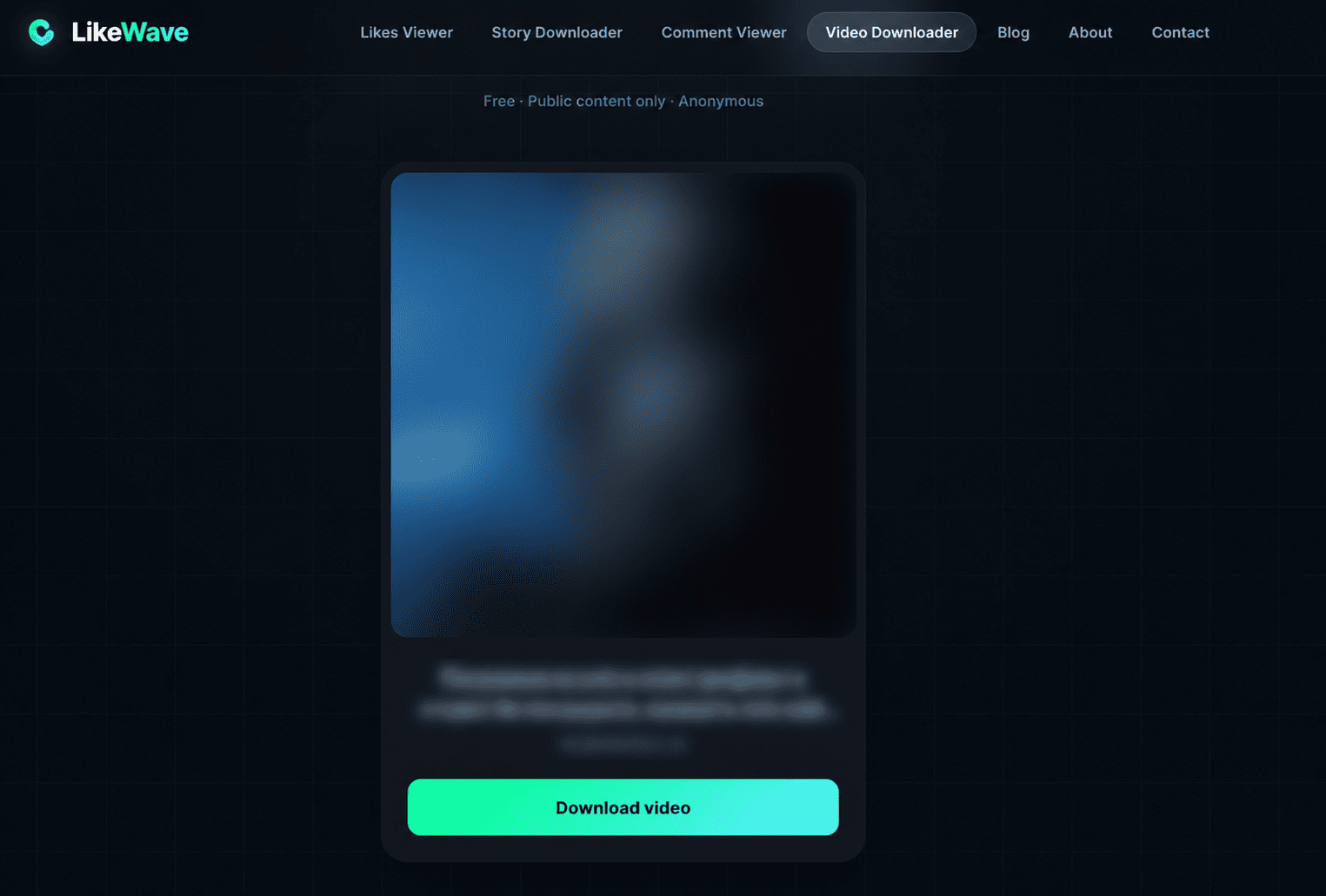
Step 6: Click “Download video”
Select the Download video button. Your browser will save the file in MP4 format. Depending on your browser settings, the video may go directly to the Downloads folder or you may be asked where you want to save it.
On a phone, the video may open in a new tab. Use the browser’s download or share menu to save it.
Why Use LikeWave for Instagram MP4 Downloads?
LikeWave keeps the workflow focused: paste a link, process the video, preview it, and download it.
Free to use: You can process supported public Instagram videos without paying for a subscription.
No watermark: LikeWave does not place its own logo, username, or promotional mark over the downloaded video.
No account required: You do not have to create a LikeWave profile or enter your Instagram password.
Public content support: The downloader is designed for publicly accessible Reels, feed videos, and supported Instagram video posts.
MP4 output: The saved format is widely compatible with phones, computers, browsers, media players, and editing programs.
Simple preview: The cover image helps you confirm that the correct video was found before downloading.
This browser-based approach avoids installing an extension, and the process is almost the same on desktop and mobile.
Can You Download Instagram Reels to MP4?
Yes. Public Instagram Reels can be downloaded as MP4 files when LikeWave can access the Reel URL. Open the Reel, copy its direct link, paste the link into the downloader, and follow the same Get video and Download video steps.
A Reel link normally contains /reel/. Do not copy only the creator’s profile URL. The downloader needs the unique URL for the Reel itself so it knows which video to retrieve.
Does LikeWave Download Videos Without a Watermark?
LikeWave does not add a watermark to the downloaded file. That means the service does not overlay a LikeWave logo or promotional banner on the video. However, any text, logo, username, caption, or watermark that already exists inside the original Instagram video will remain part of the video itself.
A no-watermark downloader avoids adding a new mark; it does not remove branding already embedded by the creator.
What Video Quality Will You Get?
LikeWave retrieves the best video file Instagram makes available for the public post. For many Reels, this can be up to 1080p, although the final resolution depends on the source uploaded by the creator and the versions Instagram currently serves.
A downloader cannot improve a low-resolution original. Downloading the available file usually gives a cleaner result than screen recording.
Why Is the Instagram Video Not Downloading?
If the downloader does not return a video, the issue is usually related to the link or the post’s visibility. Check the following points before trying again:
The Instagram account and post must be public.
The URL must lead directly to a Reel or video post.
The post must still be available and not deleted, restricted, or region-blocked.
The copied link should be complete and should not contain accidental spaces.
Your browser must allow the download or new tab to open.
A temporary Instagram or network error may require you to retry later.
If the link fails, reopen the post and copy the URL directly from Instagram.
Is It Safe to Use an Instagram to MP4 Downloader?
A sensible rule is to avoid any downloader that asks for your Instagram password. LikeWave does not require an Instagram login for its public-content video downloader. You only provide the public post URL needed to process the video.
Keep your browser updated and avoid unrelated pop-ups or requests to install unknown software. A simple MP4 download should not require an executable file.
Copyright and Responsible Use
Downloading a publicly visible video does not automatically give you ownership of it. The creator may still hold copyright and other rights to the footage, audio, branding, and performance. Save your own videos freely, or get permission before reposting, editing, selling, or using another person’s content in advertising.
Keep downloaded files private unless you have the right to share them. Crediting the creator is good practice, but credit does not replace permission.
Instagram to MP4: Quick Answers
How do I convert an Instagram video to MP4?
Copy the direct URL of a public Instagram video, paste it into LikeWave, click Get video, wait for the preview, and click Download video. The file is saved as MP4.
Is the LikeWave Instagram MP4 downloader free?
Yes. The video downloader is presented as a free tool for supported public Instagram content, with no account required.
Do I need to install an app?
No. LikeWave runs in a web browser, so you can use it through Chrome or another modern browser without installing a separate program.
Can I download videos from private Instagram accounts?
No. The downloader works with publicly available content. A private post cannot be retrieved simply by pasting its URL.
Can I use it on iPhone or Android?
Yes. You can copy an Instagram post link on your phone, paste it into the LikeWave page, and save the resulting MP4 using your mobile browser’s download controls.
Will the MP4 include sound?
If the source video contains available audio, the downloaded MP4 should preserve it. Muted source videos or unavailable audio tracks cannot be recreated by the downloader.
Where is the downloaded Instagram MP4 saved?
On a computer, it is usually stored in your Downloads folder unless you selected another location. On a phone, check the browser downloads area, Files app, gallery, or Photos app depending on your device settings.
Final Takeaway
To save Instagram to MP4, you only need the direct link to a public video. Open the post in Chrome or the Instagram app, copy its URL, paste it into the LikeWave Instagram Video Downloader, click Get video, check the preview, and select Download video. The process is quick, free, anonymous, and does not add a watermark.
The key is using the exact post URL. LikeWave then handles the technical work and provides a standard MP4 file that is easy to store and play. Because the file is saved locally, you can watch it offline, move it between devices, or import it into an editor whenever you need it later.